Excellence in the Industry
Comodo solutions and services are recognized by leading industry associations,
authorities, and analysts. Our innovative technologies are securing organizations worldwide.
Stopping Cyber Threats Vs Stopping Damage From Cyber Threats...Two Very Different Things...
Learn how you can protect your network even when detection fails!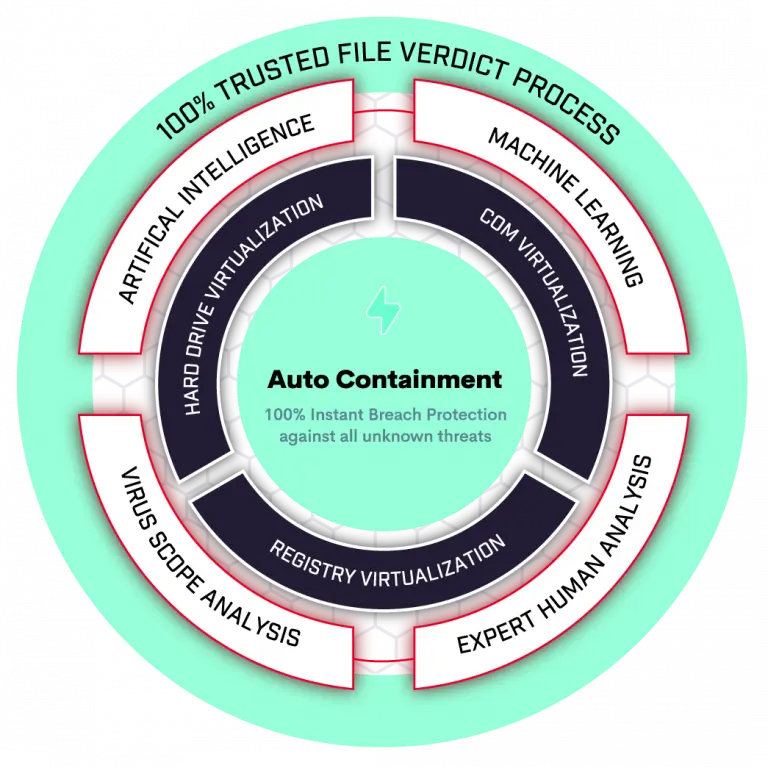
OpenEDR is an open source threat detection and response platform you can use to protect your endpoints. Offered for free, OpenEDR provides real-time analytics, and full MITRE attack-progression visibility with threat event correlation and root cause analysis. Use OpenEDR to protect, detect, and remediate adversarial activity and attacker tradecraft. This advanced EDR telemetry platform is accessible to all cybersecurity professionals, and every sized business or organization, for continuous monitoring and advanced cyber defense.
DEPLOY NOW
A single unified endpoint solution offering exploit prevention, advanced threat hunting, and endpoint management to stop ransomware, avoid breaches, and sustain your business.
Explore platform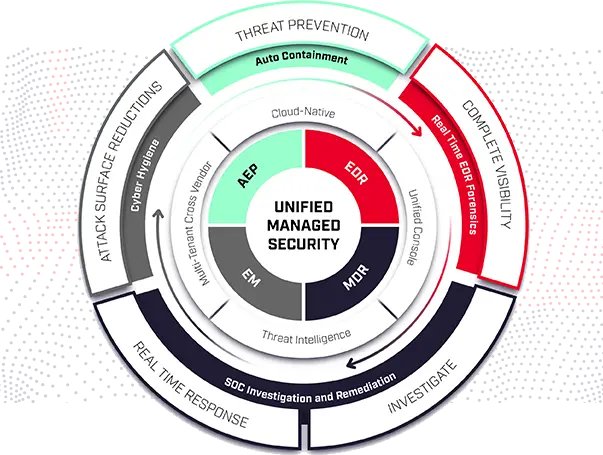
 ENDPOINT
 CLOUD
CLOUD
 NETWORK
 INTERNET
 MANAGED

Equip every endpoint, network, and workload with the latest threat intelligence against cyber threat signatures and payloads.

Defense against new or zero-day cyber threats using powerful static, dynamic, and patented behavioral AI.

Prevent unknown cyber attacks from causing damage to your endpoints with our lightweight Kernel-level API virtualization.

Gain full context of an attack to connect the dots on how hackers are attempting to breach your network.
Don't be held ransom by finding tomorrow's cyber threats. Empower your endpoints, network, and workloads by protecting your environments with 100% effectiveness.
Discover containment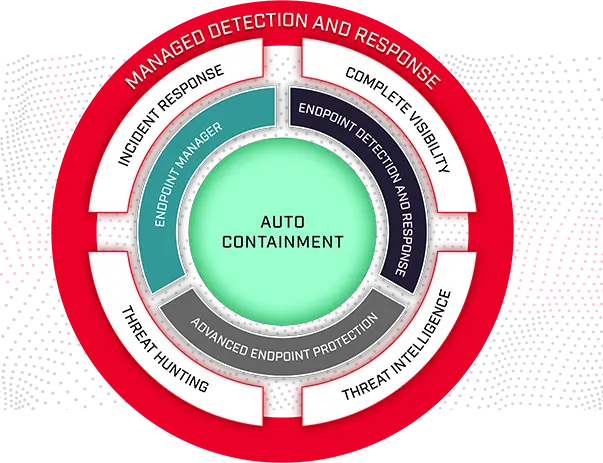
Securing our customers are our #1 priority. Global industry leaders have validated our endpoint security solutions through rigorous testing. They rely on Comodo to prevent breaches by using patented auto containment that neutralizes ransomware, malware and cyber attacks. The Dragon Platform protects millions of endpoints daily from cyber threats.
Explore Customer stories
Comodo solutions and services are recognized by leading industry associations,
authorities, and analysts. Our innovative technologies are securing organizations worldwide.

100% in protection against 0-day malware attacks, inclusive of web and email threats.
100% in the detection of widespread and prevalent malware discovered in the last 4 weeks.
LEARN MORE
Comodo Advanced Endpoint Protection can protect against the unknown file and solves the malware problem
LEARN MORE
2018 Trust Award
Best Managed Security Service
2019
Finalist Threat Intel Technology

4.2 /5 Rating for Endpoint Protection Platform
4.3 /5 Rating for Advanced Endpoint Protection
4.5 /5 Rating for Endpoint Detection and Response
LEARN MORE
Last test: March 2022
Recent result: 100%
2x | 2022 Excellence Award
Total awards granted: 16
Product of the year: 2021, 2020
The Endpoint Detection and Response(EDR) Solutions consists of products that monitor and store endpoint-system-level behaviors, employ a variety of data analytics techniques to identify suspicious system behavior, offer contextual data, thwart malicious activity, and offer recommendations for corrective action to restore harmed systems. The following four fundamental capabilities are required for EDR solutions:
EDR systems defend against common attack strategies, methods, and techniques that initial access brokers frequently employ, including fileless malware, malicious scripts, contaminated attachments, stolen user credentials, etc.
An EDR solution keeps track of every activity at the endpoints and provides thorough real-time visibility and threat information. With incident data search, alert triage, suspicious activity detection and containment, and threat hunting, it provides enhanced threat detection, investigation, and response capabilities.
You may need to select an EDR solution that is appropriate for your requirements, which may include your industry, size, security department make-up, tools used, other vendors, and environment. The other questions you should be asking your EDR provider are as follows:
How does it identify threats and anomalies?
EDR's proactive nature enables fast response to threats that EPP defense missed as well as assistance in the investigation of already-occurring breaches. By comparing recognised signatures and attack patterns, EPP finds potential threats. In contrast to EPP, EDR provides the capacity for Advanced Machine Learning Behavior Analytical with models that are regularly updated with random inputs and maximum coverage targets. In a way, EDR(Endpoint Detection & Response) adds a layer of additional security to endpoints compared to the passive nature of EPP.